
Six export formats · timed transcript
Audio to Text Converter Free
An audio to text converter free workflow should produce a usable file, not just a paragraph on screen. Choose media, edit the transcript, and export the format you need.
Drop audio or video here
MP3, WAV, M4A, MP4, MOV, WEBM and more
Five starter transcription minutes are included for new accounts.
Workflow / 01
How to use this audio to text converter free
An artifact-first conversion path for people who already know the destination: plain text for notes, timed subtitles for video, structured data for systems, or a document for handoff.
- 01
Select the source file
Bring in supported audio or video and confirm its duration before spending credits.
- 02
Choose the intended output
Pick text, captions, structured data, or a document so the workspace explains the matching finish.
- 03
Edit transcript structure
Correct terms, speaker labels, and timing while listening to the original recording.
- 04
Export the artifact
Download TXT, SRT, VTT, JSON, PDF, or DOCX from the completed transcript.
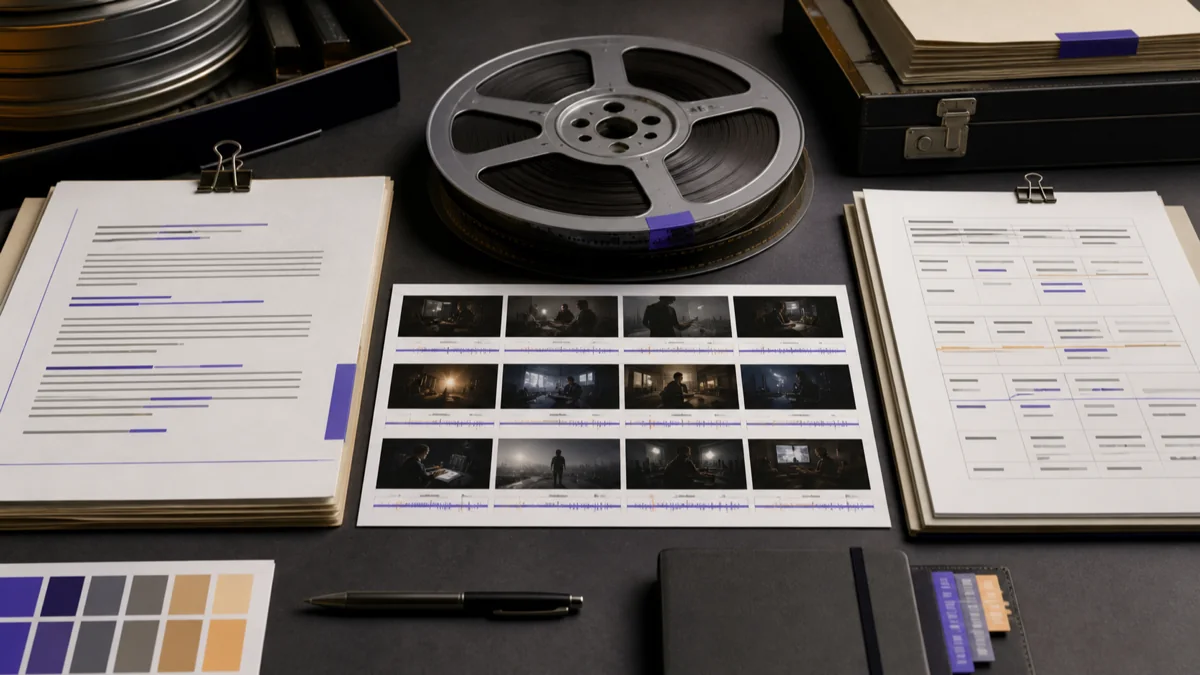 GPT Transcribe field guide
Principle / 02
Audio-to-text is a workflow, not a file rename
An audio file stores sound; a transcript stores recognized language. The conversion therefore includes speech recognition, human review, and output formatting rather than simply changing a filename extension.
TXT works for lightweight copy, SRT and VTT carry timing for captions, JSON preserves structure, while PDF and DOCX are useful for reading and handoff. Select the artifact according to what happens next.
Caption production
Create timed SRT or VTT files for a video editor or publishing platform.
Document handoff
Deliver a searchable PDF or editable DOCX instead of an audio attachment.
Structured reuse
Export JSON when another application needs transcript segments rather than formatted prose.
Decision / 03
GPT Transcribe vs Happy Scribe vs Notta
Product pages checked 2026-08-12
| Compare | GPT Transcribe | Happy Scribe | Notta |
|---|---|---|---|
| Inputs | Audio, video, recording, and direct media URL | Uploaded audio and video plus integrations | Uploaded media, recording, and meeting workflows |
| Artifacts | TXT, SRT, VTT, JSON, PDF, and DOCX | Transcript and subtitle workflows | Transcript, summary, and sharing workflows |
| Best fit | Direct file conversion and export | Subtitle teams and human-service options | Meeting notes and multilingual collaboration |
Decision guide: Choose GPT Transcribe when output format is the main decision and one transcript must feed captions, documents, or structured data. Happy Scribe is worth evaluating for subtitle operations and human services; Notta is more meeting- and collaboration-oriented.
Limits / 04
Know before you start
A trustworthy tool says where its result can fail, what stays on your device, and what deserves a human check.
Formats describe outputs, not accuracy
Changing the export type does not repair a misheard word; review the transcript first.
Speaker structure depends on the recording
Clear separation and known speaker counts help; overlapping voices may still need manual correction.
Answers / 05
Frequently asked questions
Which text formats can I download?
The workspace exports TXT, SRT, VTT, JSON, PDF, and DOCX after the transcript is ready.
Can the converter keep timestamps?
Yes. Timed transcript segments support SRT and VTT exports; review timing against the source before publication.
Does converting audio to text delete the audio?
No. The transcript is a separate result. Keep or remove source media according to your account and retention needs.