
Local conversion · no media upload
MOV to MP3 Converter
MOV to MP3 conversion extracts the audio track from a QuickTime movie and encodes it as an MP3. Your file stays in this browser; desktop limits reach 250 MB, while mobile and low-memory devices use a 96 MB safety limit.
Drop a MOV or QuickTime file here
Up to 250.0 MB · no media upload
Private, local conversion
The converter runs in this tab. Your source file is not sent to our servers; the pinned conversion engine loads from jsDelivr.
Choose a file to begin.
Workflow / 01
How to convert MOV to MP3 in your browser
A QuickTime movie is a multimedia container that may hold picture, sound, text, and other tracks. This tool selects its first audio stream, removes the visual track, and creates a widely playable sound file locally.
- 01
Choose a MOV file
Select one .mov or .qt movie from your device; empty and mismatched files are rejected.
- 02
Set MP3 quality
Use 192 kbps for a balanced default, 128 kbps for a smaller file, or 320 kbps for a higher bitrate.
- 03
Convert locally
The browser loads the conversion engine and processes the first audio track in memory.
- 04
Preview and download
Listen to the result, then save a clean .mp3 filename while the original MOV remains unchanged.
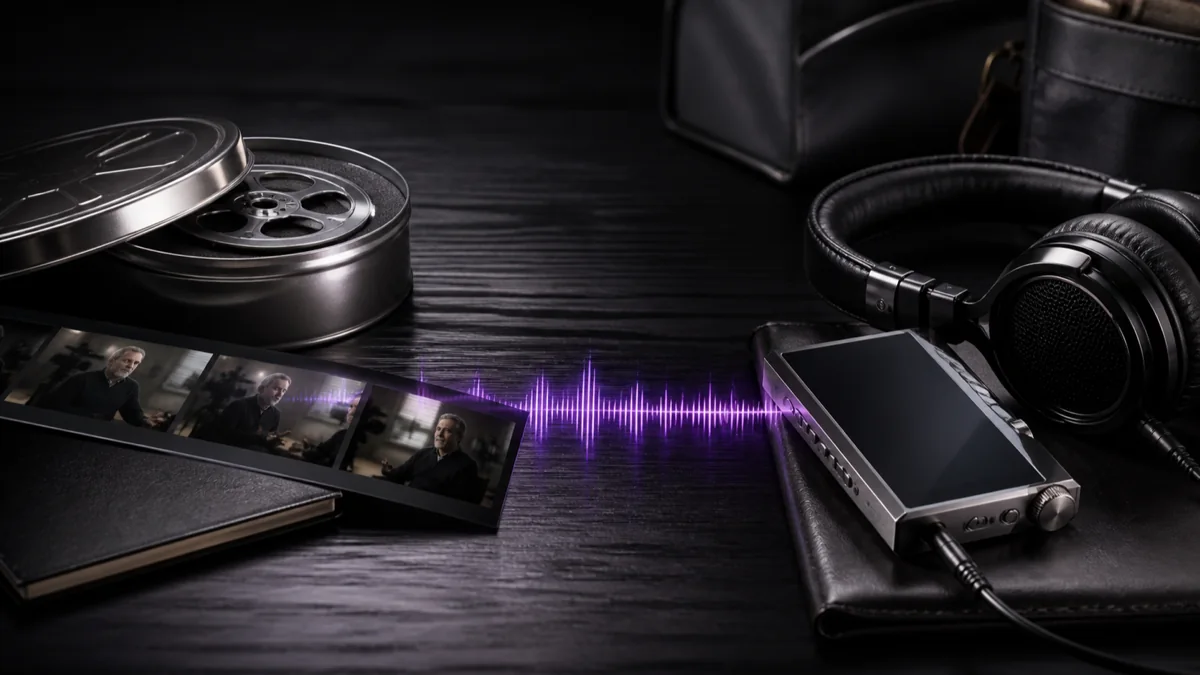 GPT Transcribe field guide
Principle / 02
What changes when MOV becomes MP3
MOV describes a container that can carry several types of media. MP3 is an audio format. The conversion therefore selects sound from inside the movie, discards the video for the output, and encodes the sound at the bitrate you choose.
The operation is one-way for the result: an MP3 cannot recreate the removed picture. Your original QuickTime movie remains unchanged, so keep it if the visual track matters.
Phone and camera clips
Pull the spoken or musical track from a QuickTime recording for audio-only reuse.
Interview listening copy
Create an audio version that is easier to review or feed into transcription.
Presentation soundtrack
Separate narration from visual slides when the listener only needs the spoken content.
Decision / 03
GPT Transcribe vs Restream vs CloudConvert
Product pages checked 2026-08-12
| Compare | GPT Transcribe | Restream | CloudConvert |
|---|---|---|---|
| Processing path | Local in this browser | Uploaded online conversion | Uploaded cloud conversion |
| Controls | 128, 192, or 320 kbps MP3 | Simple MOV-to-MP3 workflow | Broader codec and conversion options |
| Best fit | Private, one-file audio extraction | Quick simple online conversion | Complex format or batch requirements |
Decision guide: Choose GPT Transcribe when keeping the movie on your device is the deciding factor. Restream offers a simple uploaded conversion path, while CloudConvert is better suited to users who need a wider cloud conversion toolbox.
Limits / 04
Know before you start
A trustworthy tool says where its result can fail, what stays on your device, and what deserves a human check.
The movie needs an audio track
A silent movie cannot produce an MP3; the tool reports this rather than creating an empty file.
Large files use browser memory
Desktop browsers accept up to 250 MB. Mobile and low-memory devices use a 96 MB safety limit and may still need a shorter clip.
Answers / 05
Frequently asked questions
Does converting MOV to MP3 remove the video?
Yes. The result contains only the selected audio track; the original MOV remains unchanged on your device.
Is my MOV uploaded?
No. Conversion runs locally. The runtime files download to your browser, but your selected media is not sent to the site.
What happens if the MOV is silent?
The converter reports that no audio stream is available and does not create a misleading empty download.