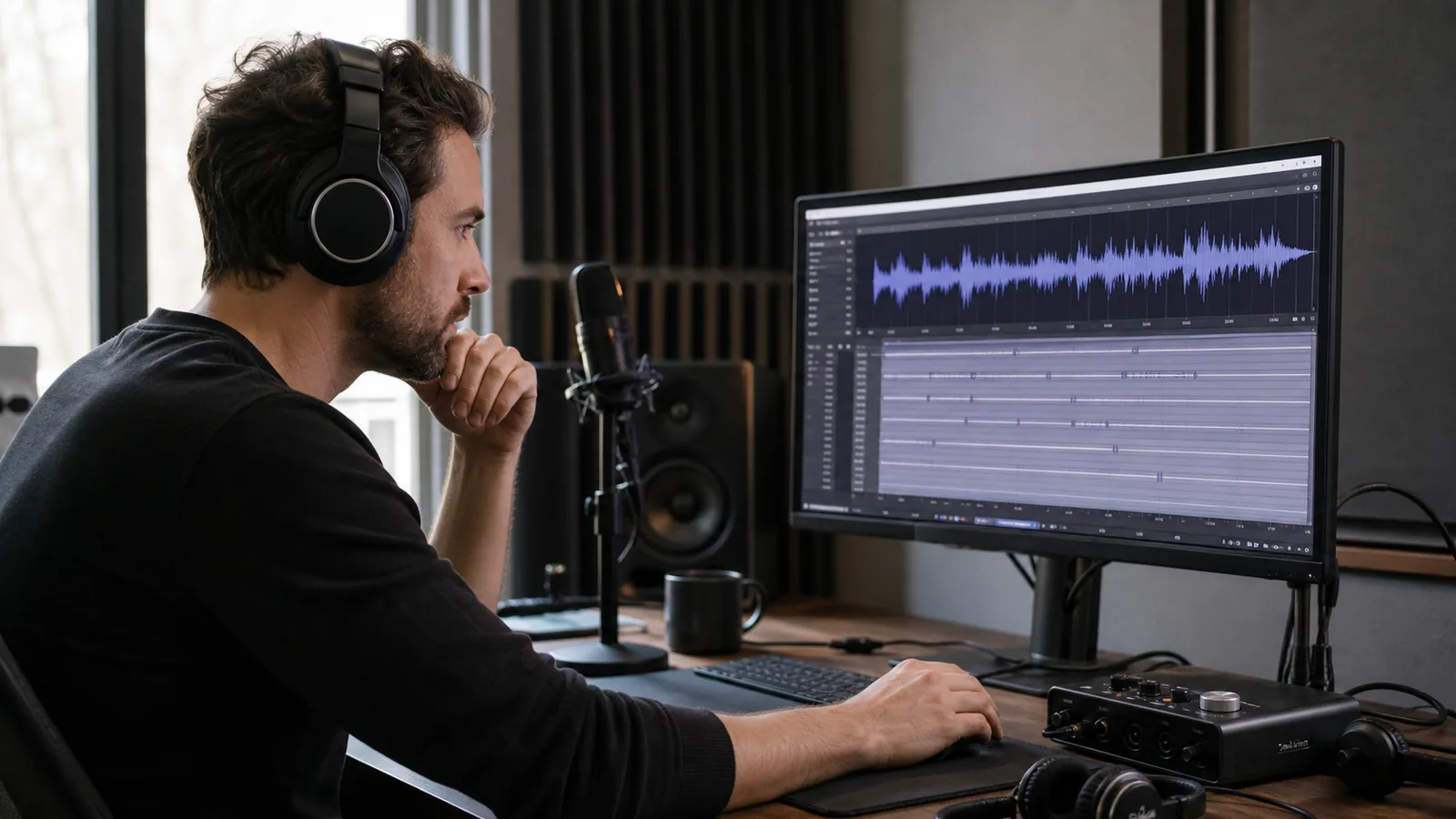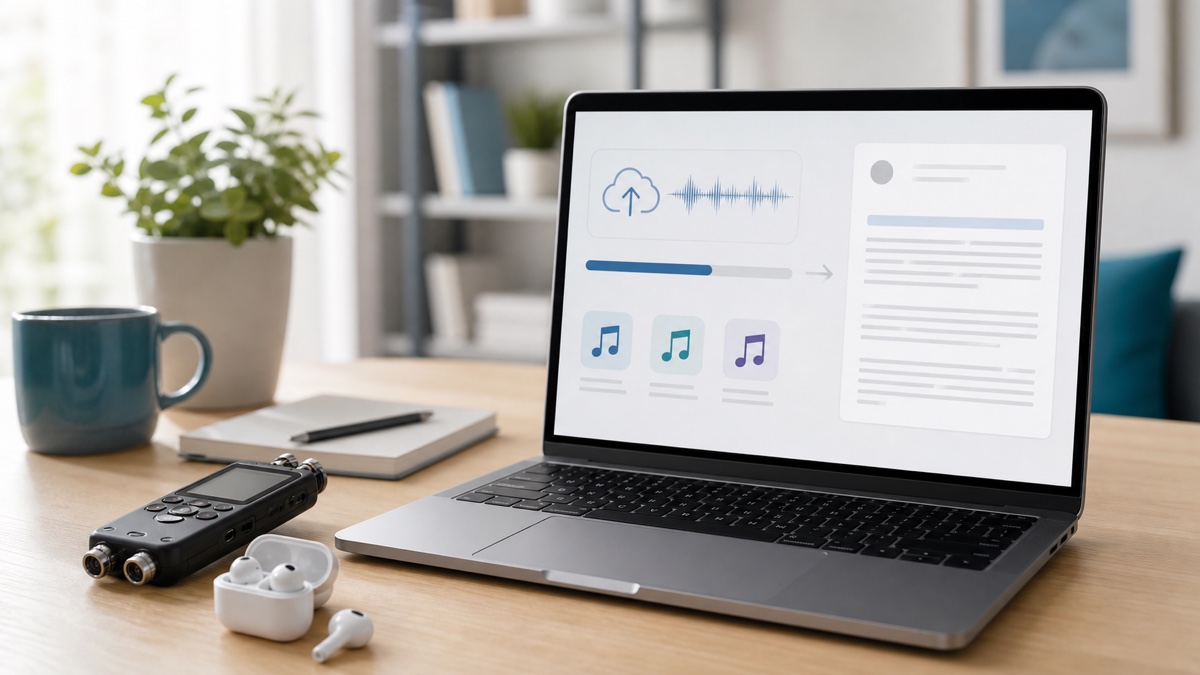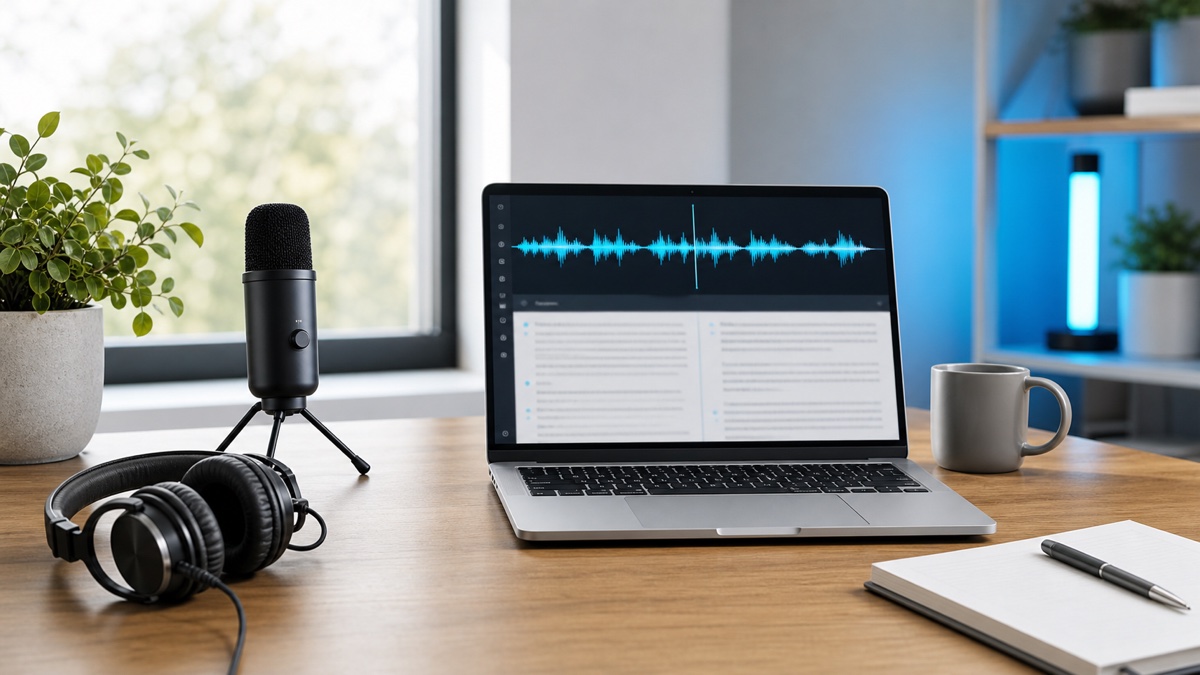
Audio does not survive contact with a busy week. A forty-minute interview holds one quote you need; a sales call holds the objection that explains the lost deal; a lecture holds the definition that will be on the exam. All of it is in there, and none of it is findable until it becomes text.
That is the whole argument for speech to text, and it is why GPT Transcribe is built as a workflow rather than a text box: get the audio in, set two options, read what comes back, fix the handful of things that matter, and take it out in whatever format the next step consumes. This guide covers each of those, plus what actually determines whether the result is any good.
What GPT Transcribe does
It takes spoken audio — from a file you upload, something you record on the page, or a media URL it fetches for itself — and returns written text with timings attached. From there you correct what needs correcting, put real names on the speakers, and export.
The design assumption is that nobody wants raw text as an end product. What people want is a caption file, a set of meeting notes, an article draft, or a record they can search two years from now. So the parts that get attention are the ones around recognition: how easily audio gets in, how quickly you can find and fix an error, and how many useful formats come out.
Underneath is OpenAI's Whisper, which is why accented speech, background noise and multilingual recordings hold up better than they did a generation of tools ago. OpenAI's speech to text documentation describes the model layer; everything above is about what you do with it.
When to use speech to text
The test is simple: does the spoken content still have value after the recording stops? A meeting whose decisions someone will need to look up, an interview you will quote from, a podcast that becomes show notes and clips, a lecture that becomes revision material, a video that needs captions — all yes.
In practice the reasons cluster into three. Findability: you want to locate what was said without replaying the file. Rewriting: the spoken material has to become a written document. Distribution: you need captions, subtitles, summaries or excerpts to publish elsewhere.
Which one applies changes what you do. Captions need timing preserved from the start. An article needs the complete transcript first and structure imposed afterwards. Anything kept for compliance needs timestamps and the original media filed alongside the text, because the transcript alone proves nothing.
How the GPT Transcribe workflow works
Open the speech to text workspace and pick the input that matches your source — upload for existing files, recording for something live, URL for media already hosted somewhere. Set the language if you know it. Turn on speaker labels if more than one person talks; it is the setting that most reduces review time later.
When the job lands, read it before you export. No automatic transcript should go out as a record of what was said without a human having looked at it — names, product terms, acronyms and anything spoken quietly are where it will be wrong. The editor is there to fix those, rename speakers, cut irrelevant stretches, and check quotes against the audio.
Then export by destination. Plain text for editing. A timestamped format when you need to navigate or verify. SRT or VTT for captions. Structured output when the transcript is being fed to another system rather than read by a person.
How to get better transcription accuracy
Audio quality outranks everything else, by a distance. Microphone position, room noise, and whether people talk over each other will move the result more than any setting on the page. Recording a meeting? Put the mic near the main voices and ask for one thing: let people finish.
Language settings come next. Detection is genuinely useful when you do not know what is coming, but naming the language helps precisely where help is needed — short clips, noisy rooms, recordings that switch languages mid-sentence. And speaker labels save review time in a way that is easy to underestimate: correcting "Speaker 1" once beats reattributing every paragraph by hand.
For technical material, budget time for proper nouns. Company names, API names, drugs, statutes, niche products — that is where the errors live, and a wall of otherwise-correct text is exactly where they hide. Search for them rather than reading for them.
Export formats and what they are for
Pick the format for the work that follows, not the one that sounds most complete. TXT for quick notes, drafts, and search. DOCX when someone else will edit or review it in a word processor. JSON when a developer or an internal tool needs segments and timings intact.
Captions mean SRT or VTT. SRT goes almost anywhere — platforms, editors, players. VTT is the web-native choice and is documented in MDN's WebVTT reference. Either way, captions are what make a video usable for the large share of viewers watching with the sound off.
Not sure? Take a readable transcript and a subtitle file. One is what you write from, the other keeps the timing — and both come from the same job at no extra cost.
FAQ
Is GPT Transcribe the same as speech to text?
Speech to text is the general task: spoken audio in, written text out. GPT Transcribe is one implementation of it, with the upload, recording, review, speaker-labelling and export steps built around the recognition itself.
Can I use GPT Transcribe for video files?
Yes — video to text is among the most common things people run through it. The spoken track gets transcribed, and the result feeds captions, documentation, or a written piece.
What is the best first step?
Take a short sample to the speech to text page before committing a large batch. Five minutes tells you whether your language and speaker settings are right, which is much cheaper to learn now than after an hour-long file has been processed and reviewed.