Most video now gets watched with the sound off at least some of the time — on a commute, in an open-plan office, in bed next to someone asleep. Captions stopped being a compliance checkbox somewhere around then. They are also how a viewer with hearing loss follows along, how a non-native speaker keeps up, and how an editor finds the one sentence they need six months later.
The mechanics are short: put the finished media through GPT Transcribe speech to text, get a timestamped transcript, fix what needs fixing, export SRT or VTT, and watch it back before publishing. Everything below is about doing each of those in the order that avoids redoing them.
Captions vs subtitles
The two words get swapped around freely, but they were built for different viewers. Captions carry the dialogue and the sound that matters — a door slamming, laughter off-camera — for someone who cannot hear the audio at all. Subtitles assume you can hear it and need the words in text, often in another language.
For practical purposes the distinction matters less than what they share: both are text welded to timing. A transcript on its own will not appear at the right second in a player, which is the entire reason SRT and VTT exist as separate formats.
The W3C's page on captions and transcripts covers the accessibility case. The operational case is separate and just as real: once the words are timed, a video becomes something you can search, quote, and cut clips out of.
Step 1: Use the final media file
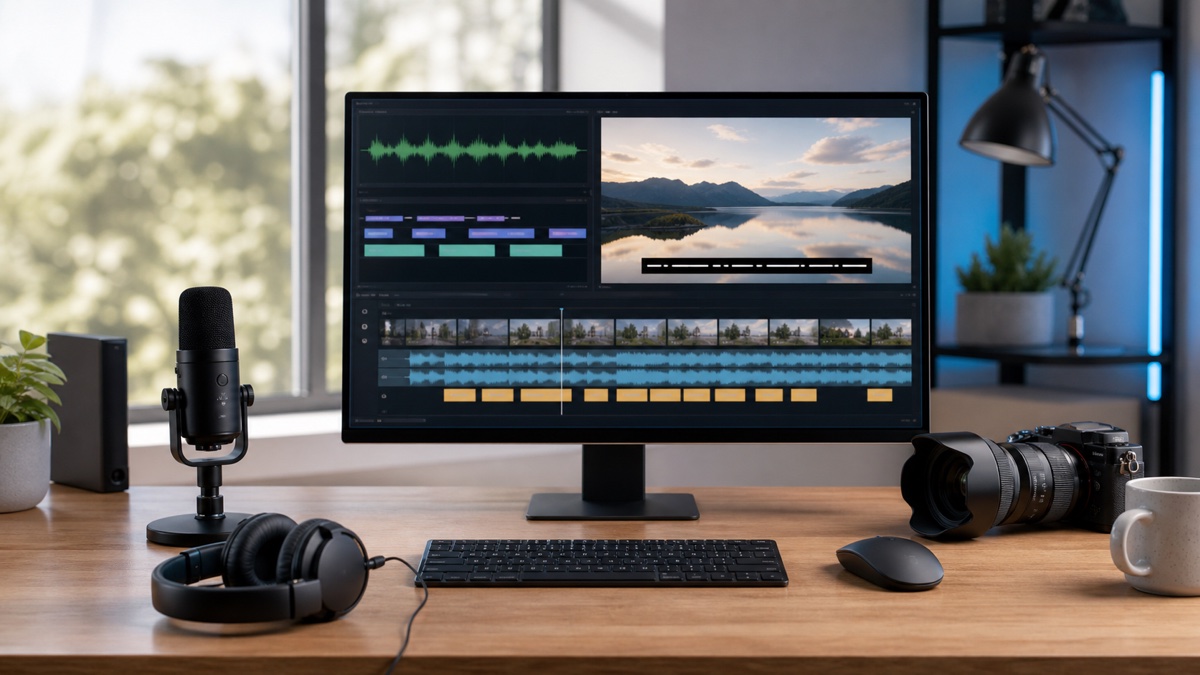
Caption the finished cut. Transcribe a rough edit and every subsequent trim shifts the timing underneath your caption file — the fix is not adjusting it, it is redoing it. This bites hardest on the formats that get edited most: short clips, webinars trimmed for length, course modules, product demos.
Decide early what happens during the non-speech parts. Twenty seconds of intro music, a title card, a silent product shot — should captions sit empty or should something appear? If your platform accepts a transcript and a caption track separately, publish both: one is for reading and search, the other for playback.
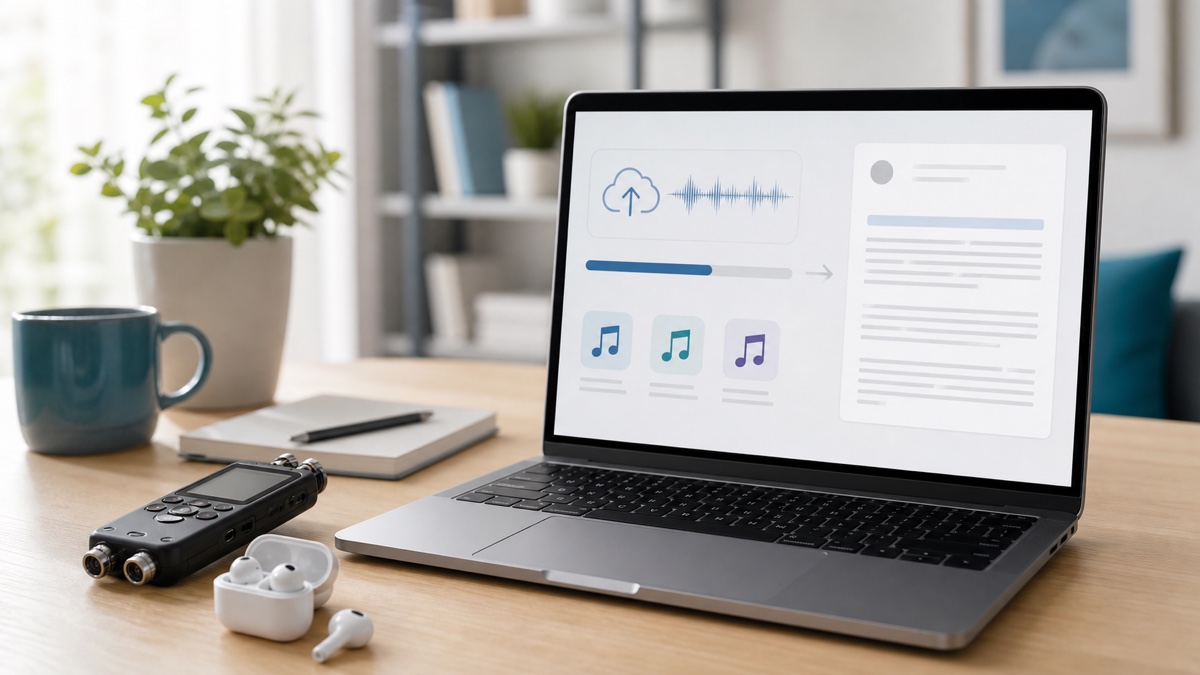
Open the GPT Transcribe speech to text workspace, upload the final file, and set the language to match what is actually spoken. With several speakers, keep labels on while you review even if you strip them out of the published captions — they make the review far quicker.
Step 2: Review the transcript for caption quality
Reviewing for captions is not reviewing for a transcript. A transcript can carry a forty-word sentence; a caption has to be read in the two seconds it is on screen, while the picture keeps moving. So you are hunting for different things: over-long lines, missing punctuation, and phrases that made sense in the room but not without the visual.
Names deserve a pass of their own. Brands, guests, product features, URLs, technical terms — errors there are the ones sitting in twenty-point type across someone's screen, and the ones viewers write in about. Fix them before export, not after.
Where several people speak in quick succession, decide whether labels help. "Host:" and "Guest:" earn their space in an interview or panel. On a thirty-second social clip they eat the line and add nothing.
Step 3: Export SRT or VTT
SRT is the safe default — nearly every platform and editor accepts it. VTT is the web-native option and supports features browser players use. MDN's WebVTT API reference is the place to look if your team builds its own playback.
Undecided? Take SRT for general publishing and VTT if the video lives in your own web player. Export the plain transcript alongside either one — that is what feeds the recap post, the show notes, the documentation page, and on-site search.
Then upload it and watch the video through. All of it, or at least start, middle and end. Timing drift is glaringly obvious during playback and completely invisible in a text editor, and this is the step people skip when they are in a hurry.
Caption readability checklist
Check three places: the first minute, somewhere in the middle, and the last minute. Captions should arrive with the speech, leave when it stops, and never sit on top of something you need to see. If viewers can restyle captions on your platform, look at it on a phone as well as a desktop.
Pacing decides whether captions help or become a second thing to keep up with. A fast talker needs splitting into shorter segments rather than denser ones. Keep punctuation natural — it is what lets a reader parse the sentence before it disappears.
Last, make sure the declared caption language matches the video's metadata. It is a small field that decides whether viewers can find the right track and whether the platform understands what it is hosting.
Using captions for SEO and content reuse
Captions serve viewers; the transcript underneath serves everything else. A webinar becomes a recap article. A podcast becomes show notes. A demo becomes the first draft of documentation nobody wanted to write.
What does not work is pasting a raw transcript onto a page and calling it a post. Spoken language reads badly on a screen, and a wall of unedited speech serves neither a reader nor a search engine. Use it as source: pull an outline, write real headings, add the examples the speaker gestured at but never spelled out.
If you want somewhere to start, run the video through GPT Transcribe, export the transcript, mark the three sections worth keeping, and build the article outward from those.
FAQ
Can GPT Transcribe generate SRT files?
Yes — transcribe with timing, review the text, and export as SRT. That file drops straight into a video platform or editor.
Should I use SRT or VTT?
SRT for the widest platform compatibility, VTT for web players and browser-native features. If it is not obvious which applies, export both and see which your publishing tool prefers.
Do captions help SEO?
Indirectly. The accessibility and engagement benefits are direct; the SEO benefit comes from what you build out of the transcript — an edited, structured page — rather than from the caption file itself.