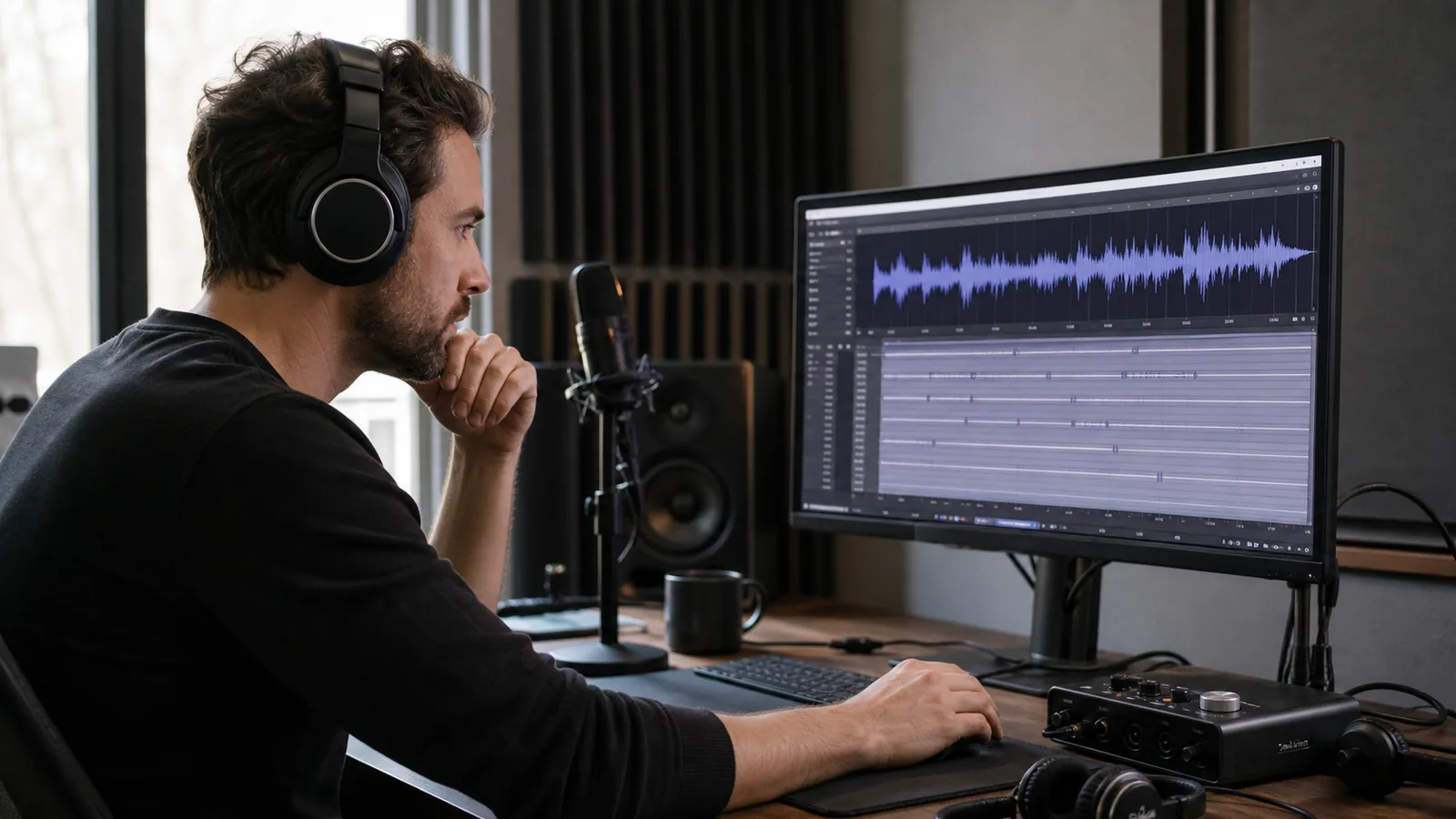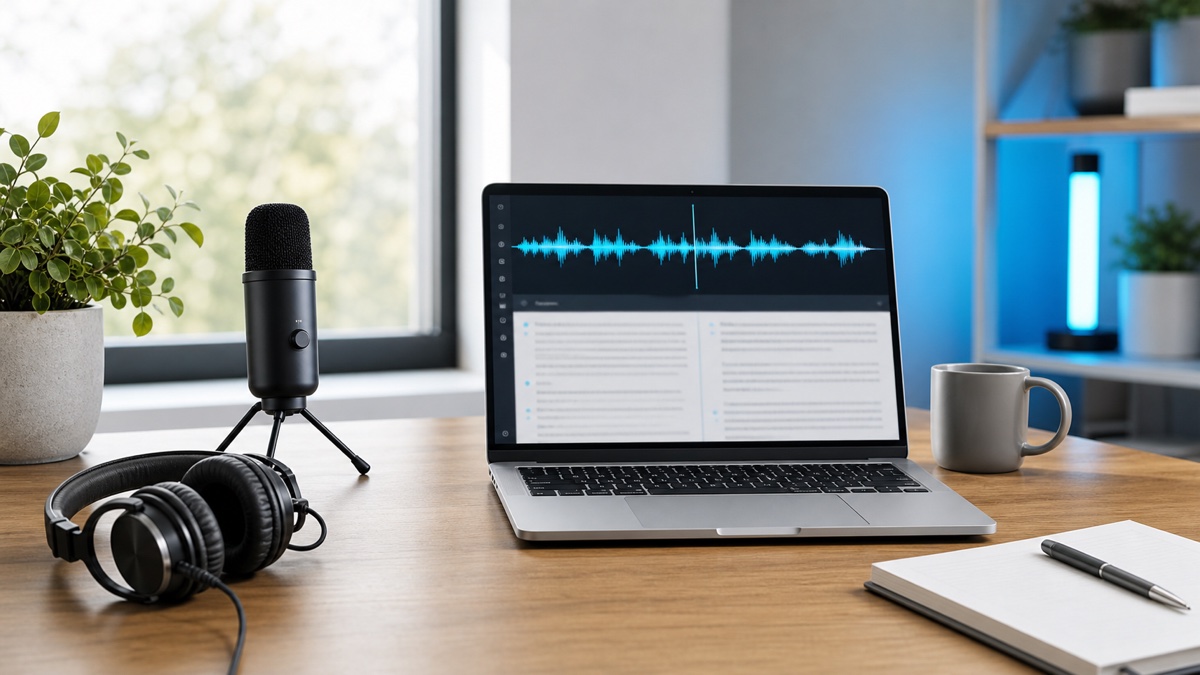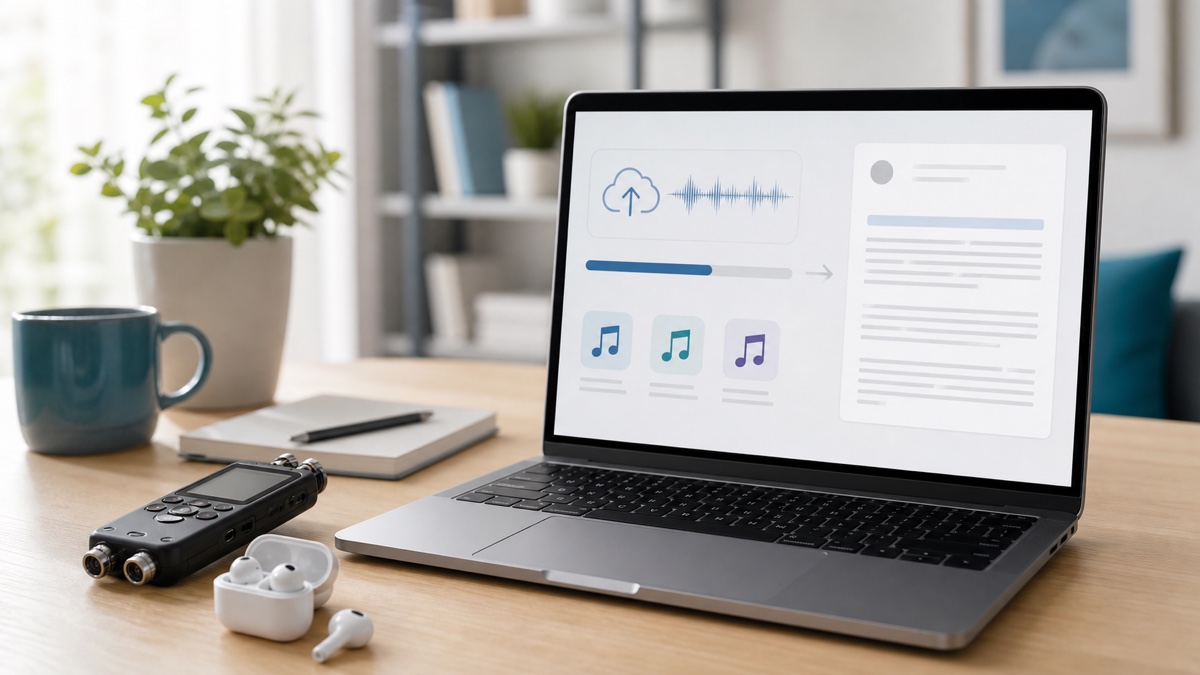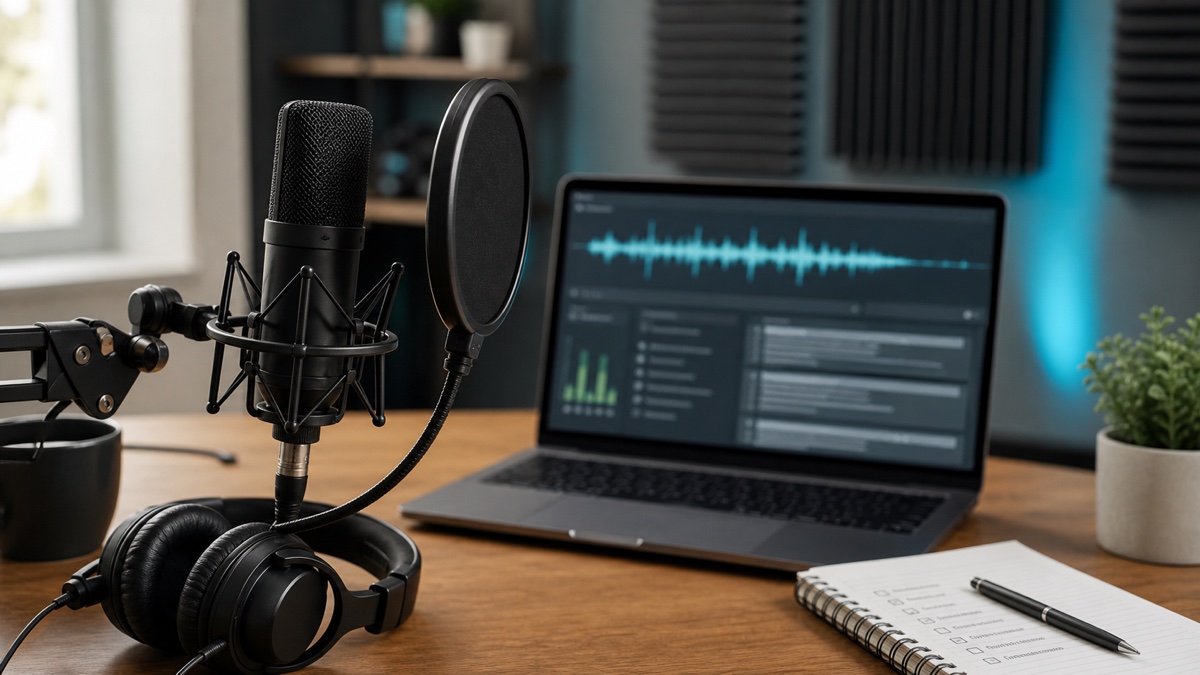
Ask why a transcript came back messy and the answer is almost never the model. It is a phone lying face-down on a table three seats away, two people finishing each other's sentences, or a product name that exists in no dictionary. GPT Transcribe copes with a lot, but what you feed it sets the ceiling on what you get back.
What follows is the short list of things that actually move the needle — before you press record, while the job runs, and in the ten minutes afterwards. Apply them and the correction pass shrinks from an afternoon to a coffee break.
Start with better audio
Distance is the single biggest lever. A microphone an arm's length from the speaker will beat any amount of post-processing on a recording made from across the room. If the conversation happens on Zoom, Meet, or Teams, take the platform's own recording rather than pointing a second device at your speakers — one re-recording step throws away detail you cannot get back.
Overlap is the second. Speech recognition has to guess when two voices occupy the same moment, and guesses are where errors come from. Thirty seconds of ground rules at the top of a meeting — let people finish, take side conversations elsewhere, say numbers and names slowly — buys back more accuracy than any setting on this site.
When you are in an unfamiliar room, record fifteen seconds and play it back before the session that matters. Air conditioning, a fridge compressor, or a table that transmits every laptop keystroke are all obvious on playback and invisible while you are talking.
Choose the right language setting
Auto-detection earns its keep when you genuinely do not know what is coming. When you do know, say so. Naming the language removes an entire class of ambiguity, and that matters most on the recordings that are hardest anyway: short clips, strong accents, heavy jargon, poor signal.
Recordings that switch language mid-sentence deserve a slower review. Code-switching, loanwords, and names carried across languages are exactly where automatic output drifts. Read for meaning first and worry about punctuation second — a sentence that says the wrong thing tidily is worse than a rough one that says the right thing.
OpenAI's speech to text guide covers how language-aware recognition works underneath. The operational version is one line: name the language when you know it, let it detect when you do not.
Use speaker labels when they help
Labels change nothing about the words; they change how quickly a human can use them. For an interview, a panel, or a six-person meeting, they are the difference between a document you can scan and a wall of text you have to decode against the audio.
Switch them on when the transcript is heading somewhere structured — meeting minutes, a quoted article, a call record, podcast show notes. Then rename "Speaker 1" to an actual name before you share it; that one edit does more for readability than any amount of grammar tidying.
Where people talk over each other, labels get it wrong too. Treat them as a navigation aid rather than a record of fact, and check the audio directly before you attribute anything contentious to a named person.
Protect proper nouns and technical terms
The errors people notice are almost always names. Companies, products, APIs, drugs, statutes, acronyms, domains — none of them can be reliably inferred from sound, and one wrong surname undermines a page that is otherwise correct.
Head it off before recording where you can. Ask a podcast guest to spell anything unusual, on tape, at the top or tail of the session. Circulate a glossary of recurring product terms before an internal call. For a lecture, pull the key terms off the slides in advance.
Afterwards, use search rather than reading. Open the transcript in GPT Transcribe and hunt for near-misses of the terms you know appear — the near-miss is usually a plausible English word, which is why it survives a read-through and dies under a search.
Review in passes instead of one long edit
Fixing everything simultaneously is slow and error-prone. Four narrow passes beat one broad one: first check nothing is missing, then fix speakers and timings, then verify names, numbers, dates and any quote you plan to use, and only then edit for readability.
How far you take the last pass depends on where the text is going. Internal notes can stay rough. Anything published needs the false starts removed and the sentences rebuilt. Captions need something different again — timing and line length matter more than prose.
Keep the untouched original alongside your edited version. When somebody disputes a quote six weeks later, the raw transcript plus its timestamps settles it in a minute; a single polished file that has been edited in place settles nothing.
Export the format that preserves what you need
Accuracy is not only about words being right — it is about being able to prove they were. If quotes will be checked, export with timestamps. If the destination is a video, take SRT or VTT. If it is a draft article, take a readable document and cut it into sections.
Structured formats earn their place in team workflows because segments, speakers, and timings survive the handoff. Working alone, TXT or DOCX is usually plenty. The right choice is whatever the next person — often future you — will need to work with.
When in doubt, take two: a clean version to write from and a timestamped one to verify against. Both come from the same job, so it costs you nothing but a second download.
FAQ
What affects GPT Transcribe transcription accuracy the most?
Microphone distance and background noise, ahead of everything else. After those: people talking over each other, whether the language was set or detected, and how much specialist vocabulary the recording contains.
Should I always use speaker labels?
Use them wherever more than one person speaks — meetings, interviews, calls, panels, podcasts. For solo narration they add structure you did not ask for, so leave them off unless you want segment boundaries for review.
How can I test my setup?
Put a short sample through the speech to text workspace and read what comes back. Adjust the microphone position, the language setting, and speaker detection based on that, then commit to the long recording.